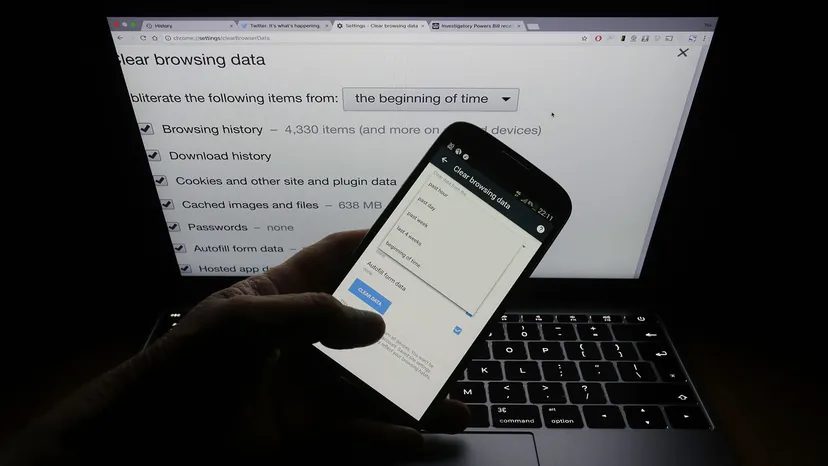
Your browser history isn’t just a list of URLs. It’s a mirror. It shows what you want, where you’ve been, and sometimes, the things you’d rather keep private. Maybe you’re shopping for a wedding ring. Maybe you’re looking up a medical symptom at 2 AM. Maybe you’re just tired of your partner seeing your search bar.
The data is there. And unless you actively manage it, it stays.
Different browsers handle this data differently. Chrome syncs everything. Firefox keeps it local by default. Safari ties it to your Apple ID. If you have multiple devices, clearing history on one might not clear it on all of them unless you’re careful. Here is how to wipe the slate clean across the major platforms.
Managing Chrome’s Synced History
Chrome, owned by Google, is aggressive about syncing. If you are signed in, your search history lives in the cloud. It appears on your phone, your tablet, and your work laptop. Deleting it on one device removes it from all of them. This includes searches made via other engines, not just Google.
To delete this data on desktop:
- Open the menu (three vertical dots) in the upper-right corner.
- Select History, then click History again (or press
CTRL+H). - On the left sidebar, click Clear browsing data.
- A dialog box appears. To truly scrub your tracks, check the boxes for Cookies and other site data and Cached images and files.
- Click Clear data.
You can also stop Chrome from guessing your next move. Go to Settings via the three-dot menu. Scroll down to Sync and Google services, then find Other Google Services. Turn off Autocomplete searches and URLs. This prevents the browser from filling in your searches before you even finish typing.
On mobile, the process is simpler but less granular. Tap the three-dot menu, go to History, select Clear browsing data, and hit Clear data.
Cleaning Up Firefox
Firefox handles history differently. It doesn’t push data to the cloud by default unless you explicitly enable Firefox Sync. This makes it a stronger choice for privacy-conscious users who don’t want a central server holding their digital diary.
On desktop:
- Click the menu (three horizontal lines) in the upper-right.
- Click the Library icon in the drop-down.
- Select History from the Library tab.
- A sidebar appears on the right. You will see folders for Today, Yesterday, Last 4 Hours, and so on, down to Older Than 6 Months.
- Right-click the specific time block or entry you want to remove and select Delete.
On iOS or Android, Firefox is more restrictive. You cannot selectively delete entries. Instead, you can hide the history from the UI entirely. Tap the menu, go to Settings, scroll to Search, and uncheck Show search history. This doesn’t delete the data from the device; it just removes it from your view. To actually wipe it, you’d need to clear all browsing data in the main settings menu, which also kills your saved passwords and open tabs.
Wiping Safari on Apple Devices
Safari ties your history to your iCloud account. If you have an iPad and a Mac, clearing history on one might not immediately update the other unless sync is active and functioning correctly. It is a complete wipe. You don’t get to cherry-pick “only delete today’s searches.” You get all or nothing.
On Mac:
- Click Safari in the menu bar at the top left.
- Select History.
- Click Clear History…
- A drop-down menu asks for the time range. Select All History.
- Click Clear History.
This action removes your browsing history, cookies, and other website data. It is nuclear.
On iPhone or iPad:
- Open the Settings app on your home screen.
- Scroll down and tap Safari.
- Tap Clear History and Website Data.
- Confirm the action.
Like the desktop version, this deletes everything. Tabs, history, cookies, all of it.
The Limits of Deletion
Clearing local history is easy. It takes a minute. But it doesn’t erase your activity from the servers of the websites you visited. If you searched for “best running shoes” on Amazon, that query is logged in Amazon’s database, not just your browser.
Google Maps and YouTube also keep separate logs. Clearing your Chrome history does not automatically erase your YouTube watch history or Google Maps location timeline. You have to manage those separately within your Google Account settings.
And then there is the question of residual data. ISP logs. Employer network monitors. If you’re using a public computer or a work network, you might be safe locally, but the network administrator sees the traffic.
History is a layer of protection, not a fortress. It stops the person sitting next to you from seeing what you did ten minutes ago. It doesn’t stop the data brokers. It doesn’t stop the companies you clicked on.
You can clean your browser. You can toggle off autocomplete. You can wipe Safari’s slate. But the digital footprint remains, just fragmented across different platforms and servers. The question isn’t whether you can delete your history. It’s whether you’re deleting it for the right reason.
Managing your digital footprint involves more than just clearing a browser cache. If you are trying to scrub search activity from Google Maps, YouTube, and other interconnected Google products, the process requires hitting the centralized activity controls. You are not just deleting local data; you are telling Google’s servers to let go of what it has recorded.
Here is how to execute that deletion across different platforms.
On your computer
The most direct route is through your account settings. Head to myaccount.google.com. Once logged in, look at the left-hand panel. Scroll down until you find Privacy & personalization and click it.
This opens the control center. Under the “Activity and timeline” section, select My Activity.
From here, the left panel returns. Click Delete activity by. A menu appears. Select the specific date or time range you want to erase. Hit delete. Confirm the action if prompted. The data is gone from your visible history.
On your Android phone or tablet
You can access these settings through the device’s main settings or directly via the Google app. Open your device’s Settings app and navigate to Google. Alternatively, tap the Google icon on your home screen.
Look for Google Account or Manage Your Account. The label might vary slightly depending on how you entered the menu.
Tap Manage Your Data & Personalization. Under the “Activity and time” header, click My Activity.
You will see a search bar. To the right of it, tap the three vertical dots. Select Delete activity by from the dropdown. Pick your desired date or time range. Hit delete.
On your iPhone or iPad
The iOS experience is slightly fragmented if you do not use Gmail. Open the Gmail app. If that is not installed, go directly to myaccount.google.com in your mobile browser.
Tap the Menu icon (three horizontal bars). Select Settings. Tap your account name. Then choose Manage your Google Account.
At the top of the screen, tap Data & Personalization. Under “Activity and timeline,” click My Activity.
In the top right corner, tap the three dots. Select Delete activity by. Choose the date or time. Hit delete.
Note: The deletion is immediate on the interface, but Google retains certain data for audit purposes.
Why this matters for shared devices
There is a hidden layer to this privacy issue. When you sign into any Google service, like Gmail, the system often auto-logs you into Chrome. This means your search history is not just in Gmail. It appears in your browser autocomplete.
This is a problem on shared devices. If you use a family computer, your private searches appear next to everyone else’s. You can prevent this automatic login, but it requires manual intervention. Most users overlook this connection until they see sensitive search terms pop up on a public screen.
Google History FAQ
How do I delete Google searches?
Clearing your Google search history via Chrome is straightforward. Open Chrome on any device. Tap the three vertical dots in the top right corner. Select History. Click Clear browsing data. Choose the Time range from the dropdown menu. Ensure Browsing history is checked. Hit Clear data.
This clears the local log. It does not necessarily remove the server-side record unless you use the My Activity method described above.
How do I see my browsing history?
In the Chrome browser or app, click the menu button in the top right corner. Select History. Click History again to view the full list. You can also use the keyboard shortcut Ctrl+H on Windows or Linux. On Mac, use Cmd+Y. Or type chrome://history directly into the address bar.
How do I see deleted activity on Google?
Google does not keep a “trash can” for deleted activity that users can browse. However, you can view what remains in your Google Account settings. Enter https://www.google.com/settings/ in your browser. This takes you to the activity dashboard. Here you can browse the list of everything Google has not deleted. If you successfully deleted an item via the “Delete activity by” tool, it will not appear here.
Does clearing the history delete everything?
No. Clearing your browsing history only removes the list of websites stored locally on your device. It wipes the visual record from your screen. It does not delete the data stored on Google’s servers. Google keeps “deleted” data for audits, internal research, and other operational uses. The local view is empty, but the server side may still hold traces.