Taking a decent group selfie is usually a nightmare. Someone is squinting. Someone is blurry. Your arm isn’t long enough to capture the whole scene while still reaching the button on your phone.
Apple finally fixed it. Or rather, they gave you another way to avoid it.
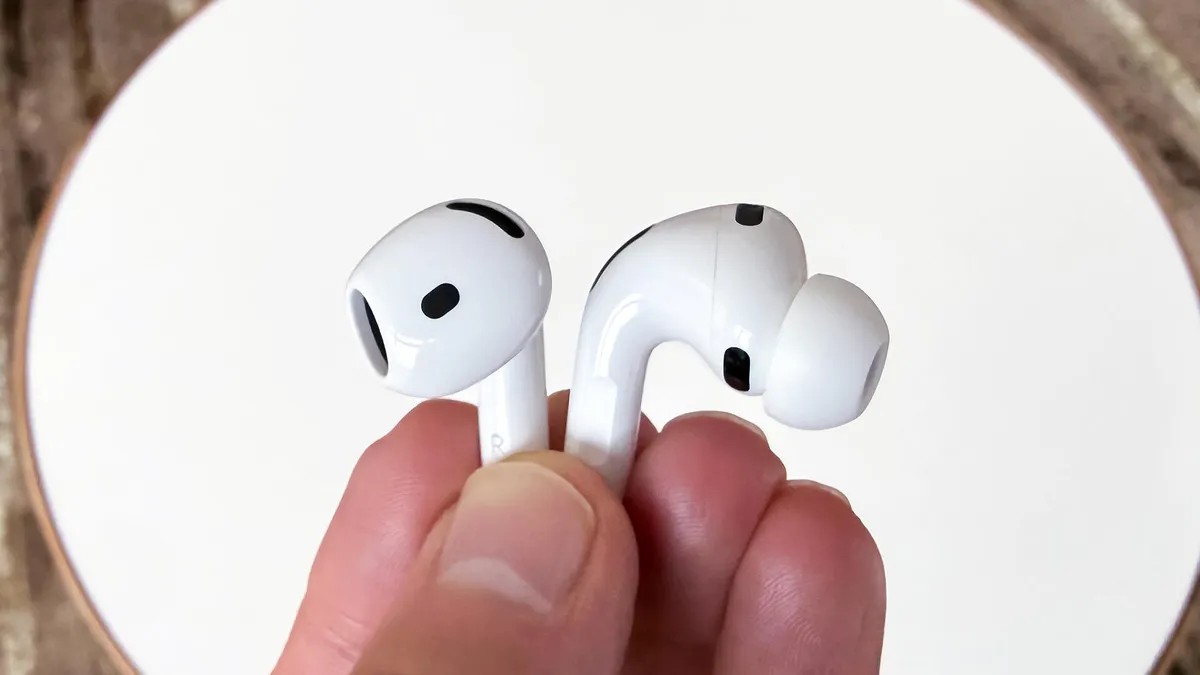
With iOS 26 (rolling out in September 2026, look the other way for a sec), your AirPods can trigger the camera. It’s called Camera Remote. It sounds techy, but it’s simple. Press the stem. Click.
Here is the catch. Not all AirPods can do this.
You need an H2 chip. That means your options are limited.
- AirPods Pro 2
- AirPods Pro 3
- AirPods 4
If you’re rocking older gear? Sorry. You’re stuck reaching for the screen.
How to actually turn it on
The feature doesn’t work by default. You have to hunt for it.
- Pair your H2-chipped AirPods with your iPhone.
- Go to Settings.
- Tap the AirPods tile at the top.
- Find Camera Remote under Camera Control.
You get two choices.
- Press Once: Quick tap on the stem for a single photo.
- Press and Hold: Keep pressure on for continuous shooting or video recording.
Pick what feels natural. Then go make messes of the sensor.
The countdown problem
Once it’s enabled, it works in every camera mode. Portrait, Time-Lapse, Standard. Everything.
But there is a hiccup.
When you trigger a static shot, like a normal photo or Portrait mode, iOS forces a countdown. You see numbers ticking down from three in the top corner. The flash even fires during the count. It’s supposed to be a warning. A “get ready” signal.
The three-second timer is automatic. There is no switch to kill it.
I tried. Really. I went digging in the settings. Nothing. The 3s timer is locked in when using the earbuds.
Want more time to compose the shot? Fine. Use the standard Camera app timer. Tap the grid in the corner. Select 5s or 10t. That changes the screen timer. But it won’t change the AirPod behavior. It remains stubbornly stuck at three.
Videos are different. No countdown. No flashing.
Press once. It starts.
Press again. It stops.
Just like hitting record on the screen, but with your hand free.
Hide the evidence
The only hard requirement? One AirPod must be connected.
The obvious way is to put it in your ear. But who wants to see their white plastic bud hovering over their friend’s forehead in a vacation pic?
Hack time.
Keep one in the case or in your hand. The other stays in your ear so the connection stays live. When the moment is right, press the stem to start the 3-second countdown.
While the numbers tick down, pull the active AirPod out of your ear. Slip it into your pocket. Or hold it behind your back.
The phone thinks the remote is still there. It takes the shot. You look normal. No earbud ghosts in the frame.
It’s a small trick. But sometimes the difference between a cringeworthy souvenir and a memory worth keeping is just not having to extend your arm to its absolute limit.