Most PDF editings feel like they were designed by accountants for accountants. Clunky. Confusing. Focus on spreadsheets instead of actually reading or writing. UPDF is trying to break this mold. It is a bridge between great power and true simplicity. Whether you’re a student cramming for a final exam, a professional drowning in contracts, or just someone who needs to sign a document quickly, this tool claims to handle your work without you having to throw your laptop out the window.
The core appeal isn’t just one feature. It’s a combination of editing, converting and protecting, all wrapped up in an interface that doesn’t require manual navigation.
Why UPDF stands out in a crowded market
You might wonder why you should use another PDF tool when Adobe and other free online converters exist. The answer lies in the versatility and cross-platform consistency. UPDF does more than just display files. It lets you dig in.
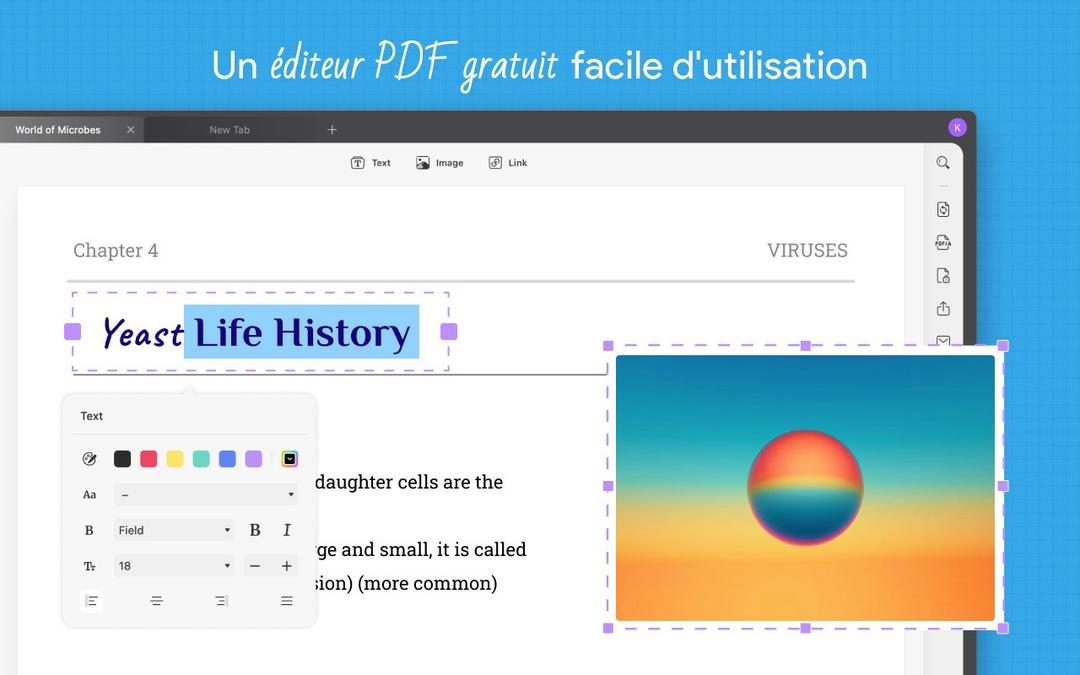
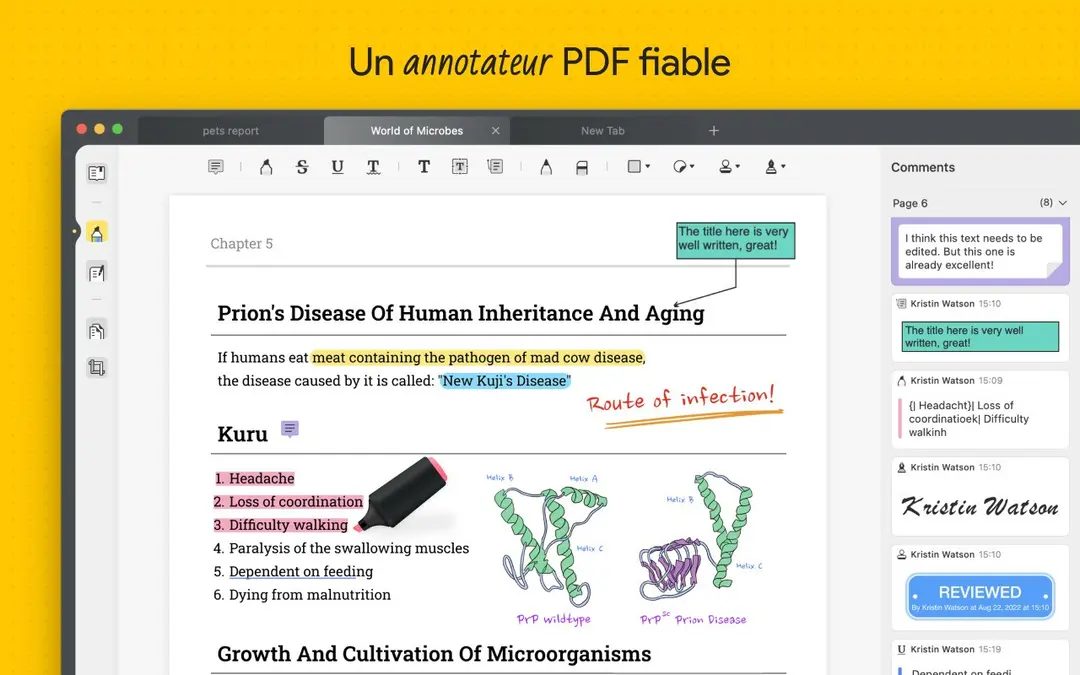
You can edit the text directly. Delete images. Add highlights. Annotate with sticky notes. It feels less like a viewer and more like a lightweight word processor that respects the PDF format. The conversion engine is also a strength. Do you need to convert a PDF file to a Word document, Excel spreadsheet or PowerPoint presentation? Or do you need to extract high-quality images from your pages? The speed with which UPDF handles these conversions feels natural rather than clumsy.
Collaboration is where it gets interesting for teams. You can leave comments and share annotations. It’s more than just leaving a note for yourself. Now you can work on the same document with your colleagues without having to email five versions of the same file back and forth.
Security is often an afterthought in cheaper tools. UPDF considers this a feature. You can protect your files with a password. Lock sensitive information. Please ensure that the information you submit is confidential. This is important if you are dealing with HR documents, financial records or other information that should not fall into the wrong hands.
Cross-platform compatibility: One tool for any device
This is where UPDF really lives up to its promise of accessibility. There is no need to buy separate licenses for desktop computers and tablets.
This software supports Windows, macOS, Android and iOS. On macOS, it doesn’t discriminate. Works natively on Intel processors and Apple Silicon (M1, M2, etc.). This is very important if you have recently upgraded your hardware and your old PDF tool suddenly broke or becomes very slow. The Android and iOS apps are optimized for touch screens. You get the same core functionality adapted to fingers instead of mouse clicks.
This continuity allows you to start editing the contract on your desktop, then switch to your iPad on the train home and complete the signing process without losing context. Continuing the workflow can save a lot of time.
How to download and install UPDF safely
Getting started is easy, but getting it right is important for safety and performance.
For desktop users (Windows and macOS):
- Visit the Official Site: Always visit the official UPDF website. Avoid using third-party download portals that bundle malware or adware.
- Select the correct version: Choose the installer for your operating system. Windows users should ensure compatibility with versions 7, 8, 8.1, 10 or 11. macOS users should choose the version that matches their chip architecture (Intel vs. Apple Silicon).
**Run the Installer: The process is guided. You accept the license agreement. Some systems may require specific permissions, such as creating desktop shortcuts or setting default behavior. Follow the guides. This will take a few seconds.
4.
Update Regularly: Check for updates after installation. The developers regularly release patches to fix bugs and add features. Staying up-to-date ensures you have the latest protections.
For mobile users (Android and iOS):
Open Your App Store: Go to Google Play Store or Apple App Store.
2. Search for UPDF: Check the developer name to avoid similar looking apps.
3. Install and Open: The app is optimized for small screens. The user interface adapts to the appearance of the phone or tablet. Use text editing, annotation and conversion tools just like on your desktop.
What happens after installation?
If you encounter any problems, the developer will provide guides. These are more than generic FAQs. Includes tutorials for beginners and solutions to common problems. This is useful if you are new to the PDF editing or if you are an IT admin who deploys software over the network.
For businesses and schools, network administrators can deploy UPDF on multiple devices using specific packages. This simplifies the rollout process and ensures that everyone is using the same version and configuration.
The goal here is to eliminate friction. You don’t need an IT degree to manage PDF files. UPDF aims to be a tool that just works, whether you have a 10-year-old Windows PC or a latest iPad Pro.
Is it worth changing?
If you’re tired of paying for bloated subscriptions that offer features you’ll never use, UPDF offers an attractive alternative. It focuses on what matters such as text editing, format conversion, document annotation and keeping them secure.
Cross-platform sync is a small luxury for some, but a huge productivity boost for others. Smooth operation on Apple Silicon means no performance penalties for new Mac users. Thanks to mobile apps, you no longer have to be tied to your desk.
There are always alternatives. Adobe Acrobat manages the business space. Free online converters enable quick processing of one-off tasks. However, for users who need a balance between features, ease of use and price, UPDF is the best choice.
Try it. Edit the text box. Convert the file. Check if the workflow is working correctly. The tools are there. The question is whether your current processes are getting in the way.
UPDF vs. Adobe and Foxit: should you switch?
The PDF editing market is very competitive. Giants like Adobe Acrobat and Foxit PDF Editor. they are powerful. They are also expensive. They are bloated.
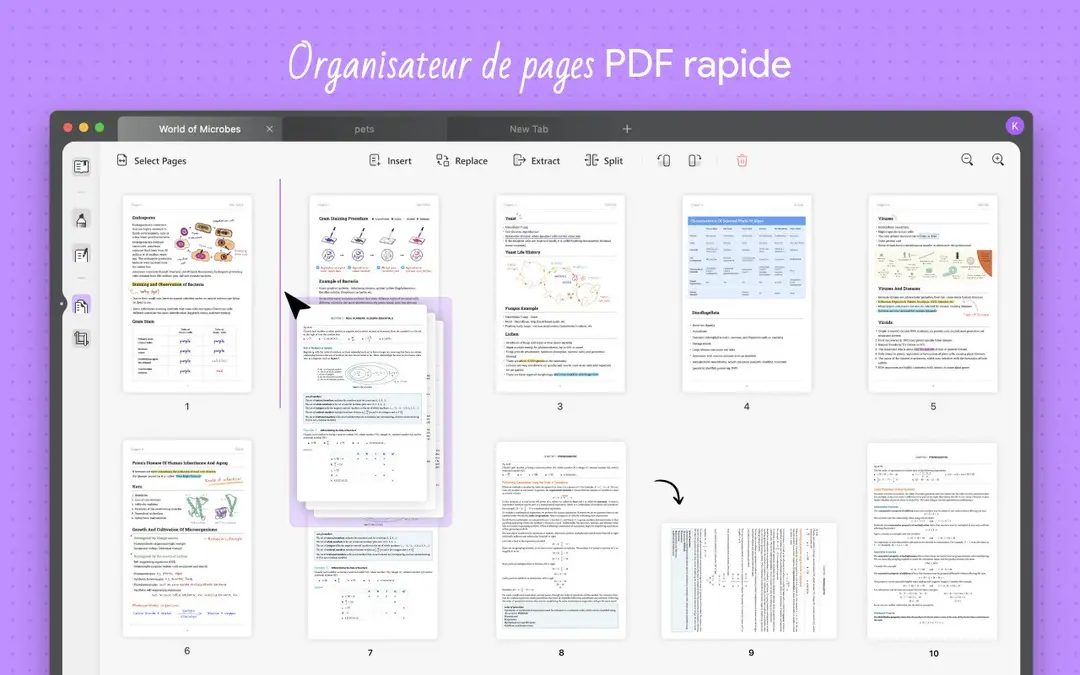
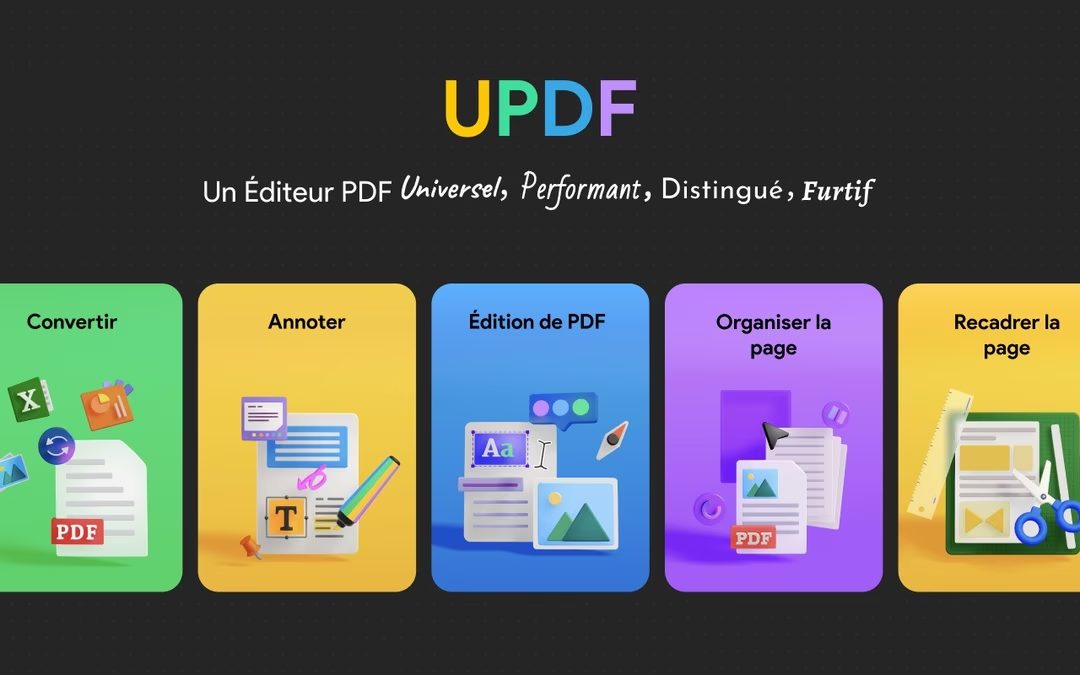
UPDF entered the ring in a different way. It doesn’t try to be everything to everyone. Focus on what’s really important. edit. Convert. sort out. protect. that’s it. No bloatware. There is no confusing plugin layer you didn’t ask for.
Price is often a deciding factor for students, teachers and freelancers. Adobe charges a fee. Foxit sits in the middle. UPDF sits closer to the ground. Offers a flexible model. There is a free version. It handles the basics well. Read PDFs. Add annotations. Make small changes. Convert files within limits. If you just want to get through the day, that might be enough.
Need more? A paid license unlocks the entire series. Unlimited conversions. Advanced protection. E-signatures. Merge files. Educational discounts are also available. This makes it accessible to the academic community. For many, this value for money is unmatched.
Compatibility is also important. UPDF can read regular PDF files without breaking the layout. The multimedia elements remain the same. If you want to compare, you can install a competitor’s trial version. Test your workflow. Rate your own user experience. Often, UPDF’s simple interface feels more like a tool than a hindrance.
Support, updates and long term viability
Software is only as good as its support. If something breaks, who will fix it? UPDF provides documents. Video tutorials. FAQ. Responsive technical assistance. This is important for both beginners and experts.
The learning curve is manageable. You can use online resources or webinars. Some training centers may offer specific courses. You can get certified. This will increase the value of your resume. This shows that you know how to handle digital document management professionally.
Updates are handled automatically or manually. You control it. New versions ensure compatibility with the latest operating systems and PDF standards. In some cases, you may need an older version. Maybe your IT environment is restrictive. Older versions are archived on the developer’s website. Download if necessary. This backwards compatibility is a subtle but important feature.
The development strategy is clear. Updated regularly. New features based on community feedback. It’s not just about selling licenses. It’s about keeping the software relevant. As digital document needs shift, UPDF adapts. This longevity gives users peace of mind. You aren’t betting on a dying product. You are betting on a tool that evolves.
“The goal is to ensure permanent compatibility with the latest operating systems and PDF standards.”
The result is a streamlined workflow. Reduces friction. Pay more attention to your content. Whether you’re a student annotating a thesis or an administrator signing a contract, the tool gets out of your way.
The question remains: why pay for complexity when simplicity works?
Currently, UPDF offers an attractive alternative. It strips away the noise. It keeps the core functions sharp. The tech landscape is noisy. Quiet efficiency is rare. And valuable.
You may end up using the free version for several months. Then one day you reach your limit. A conversion fails. A file won’t merge. That’s when the paid tier makes sense. Or maybe you don’t need it at all.
In any case, the option exists. This choice is important.
Before you click “Download”, let us explain the details. UPDF by Superace Software Technologies is more than just a wrapper around a PDF viewer. It is a native app that spans desktop and mobile environments. This distinction is important. Native apps don’t lag. They respect your hardware.
The software works in Freemium mode. Get the core tools for free. Premium features are locked behind a paywall. This is industry standard practice, but it defines what you can do yourself without opening your wallet.
Platform support and architecture
UPDF casts a wide net. Works with Windows 7-11. macOS support includes Intel chips and the new Apple Silicon architecture. Mobile users are not an afterthought. There are native apps for Android and iOS (iPhone and iPad).
Why is this important? Because it changes the file format. PDF files created on a Windows computer may behave strangely on a Mac. Native development can minimize these defects. You don’t have to rely on browser extensions or cloud conversion services that can time out. You process data on your device.
The user interface is very well translated. Pick your poison – French, English, Spanish, German. Multilingual support is built-in, not an add-on.
Hardware requirements: keep them reasonable
You don’t need a supercomputer to edit PDF files. The specs are modest.
For desktops, look for x86/x64 processors. Mobile devices use the ARM architecture. The basic memory is 4 GB. If you have an older machine with less RAM, you may experience stuttering when performing heavy OCR tasks. The screen resolution must be at least 1280×720. Small values make annotation difficult. Disk space? Minimum. It installs quickly and remains compact.
Connectivity: first offline, then Cloud Second
For many users, this is the most important difference. No internet connection required for local reading or editing. This is important for professionals who value privacy. The document remains on your computer. It doesn’t ping the server every time you highlight a phrase.
Internet is only required for activation, updates and certain cloud connectivity features. You can use UPDF even if you work in a secure environment without external access. Respect air gap workflows.
Security and access rights
PDF has its own security layer. UPDF manages permission management (open, change, print). This includes password protection. Metadata management is also integrated. If you send sensitive files to an external party, you can remove the EXIF data. It doesn’t just prevent theft. It’s about what information is leaves your document.
Import and export ecosystem
The input side is standard. Handles current PDF standards such as forms, annotations, and attachments. There is nothing exotic about it.
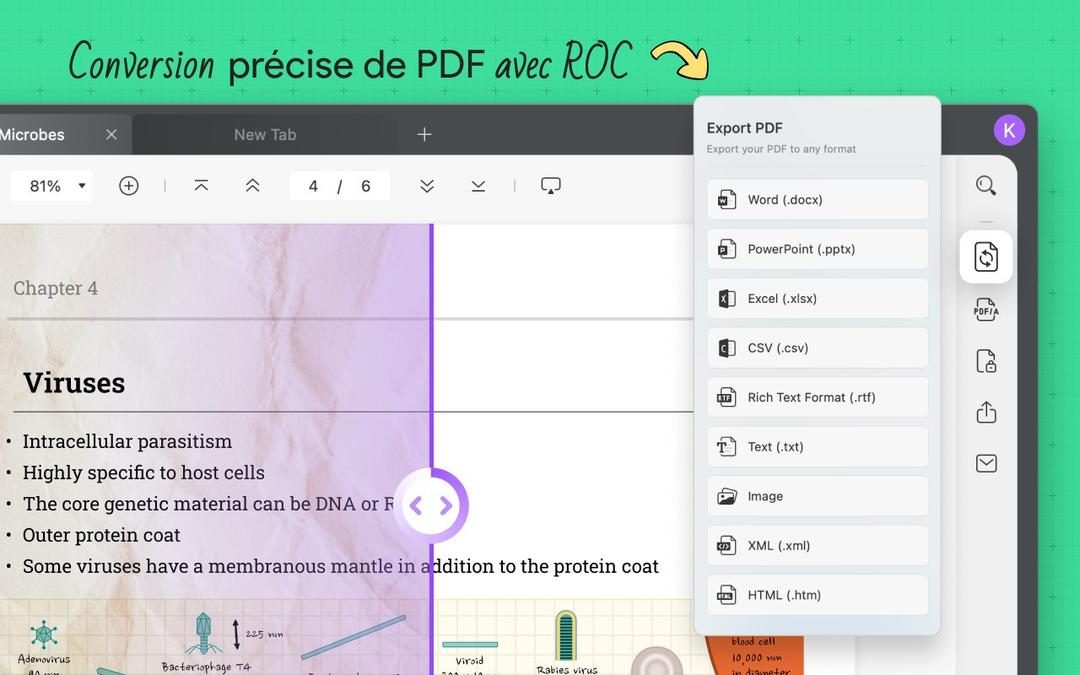
The export engine is the highlight of this utility. UPDF converts PDFs to editable office format. DOCX, XLSX, PPTX. It is also dumps to TXT, RTF, CSV, HTML, JPEG, PNG and TIFF formats. This flexibility allows you to move content between ecosystems. Do you want to convert scanned contracts into editable text? This is where the optional OCR comes into play. It’s not free at the base level, but it becomes available when you upgrade.
Support and distribution
Getting the software is very easy. Desktop users visit the official website. Mobile users go to the App Store or Google Play. Support included. Knowledge bases, video tutorials, frequently asked questions and online help. This is not just a “survey” email. These provide resources for ramp up quickly.
So is it right for you? If you want cross-platform stability without a full Adobe Acrobat subscription, the free tier is worth testing. Native applications are snappy. The offline function is robust. It’s not a question of whether it works, but whether the premium features are worth the price for your particular workflow.
I am going to rewrite this article. Please provide the source text for part 4.