


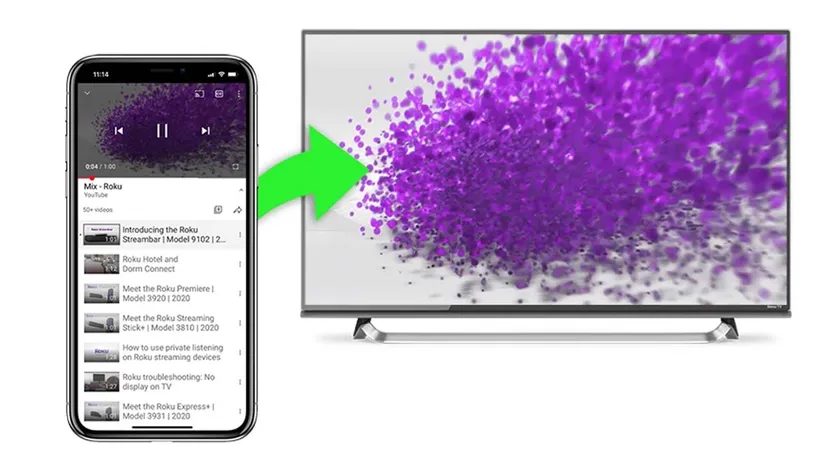
You’re three episodes deep. Your phone buzzes. You answer a call, or maybe just the text interrupts the flow. Now you’re back in the living room, but the screen is too small. You want the big TV. You want to pick up exactly where you left off.
You can do this. It is possible when you know how to cast Roku. Apps like Netflix, Spotify, and YouTube support this feature.
What is casting and why should you care?
Casting directs content from your mobile device to a smart TV using a Roku device. It is not screen mirroring. It is not duplicating your screen. It is telling the TV to start playing a specific item.
Most mobile devices and tablets support this. Look for a cast icon in the app. If you see one, you can likely send that content to your TV screen using a Roku device.
The cast icon usually looks like a little combination of a TV screen and a WiFi signal. It sits near other functions like closed captioning.
This matters because it frees you up. You can control playback from the Roku remote or the mobile device. If you use the remote, your phone becomes free. You can turn it off. You can start casting another program. You can do whatever you want without affecting the TV playback.
How to cast to Roku TV from a mobile device
Before you start, check two things. Your TV and the Roku must be on the same network. Casting will not work if the devices are not using the same WiFi. They also need to be “discoverable” by other devices on that network. This is usually enabled by default.
Once that is set, follow these steps:
- Install the channel you want to watch on your Roku device. Netflix, YouTube TV, etc.
- Make sure you have the matching mobile channel’s app installed on your phone.
- Launch the channel’s app on your mobile device. You do not have to open the channel on the Roku device.
- Select the casting icon from inside the mobile app. Remember, it looks like a WiFi network signal inside a TV screen.
- From the list of available devices on your phone or tablet, select your Roku device.
The channel will launch automatically on your Roku device. Your content will begin playback.
Is it complicated? No. But if the devices are on different networks, it will fail. That is the most common reason casting does not work. Keep the WiFi consistent.
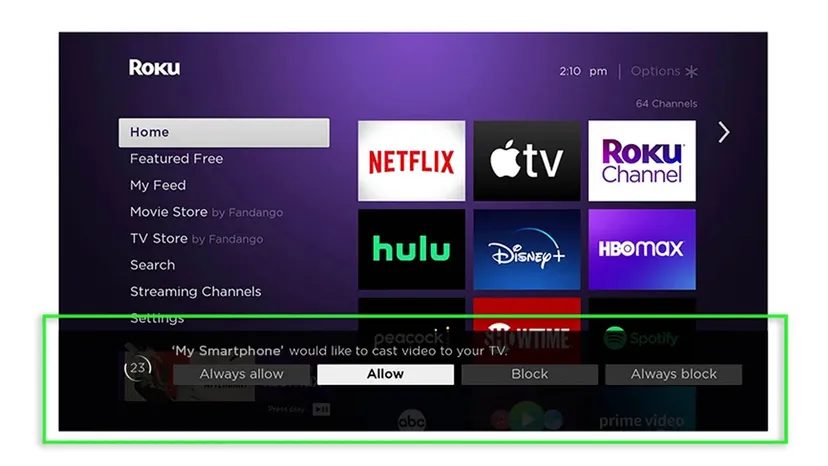

Why Screen Mirroring Differs from Casting on Roku
You might think sending video to your TV is a single process. It isn’t. Screen mirroring creates a live, pixel-for-pixel clone of your phone’s display on your Roku. When you cast, you send a specific media link. The show starts, and your phone is free to do whatever it wants.
Mirroring works differently. It grabs the entire interface. Every swipe, every notification, every icon change appears on the big screen. It’s less efficient for browsing Netflix. But if you want to show a vacation photo from your camera roll without hunting for a cast button in a gallery app, it’s the only way that works.
Roku devices support this, but you have to flip the switch in settings first. It’s also a backup plan for apps that refuse to offer a cast option.
How to Start Screen Mirroring on Android and Windows
Android and Windows tablets usually have this feature built in. You don’t need third-party apps.
On Android:
1. Swipe down from the top of your screen twice to open Quick Settings.
2. Tap Smart View (or Screen Mirroring).
3. Select your Roku from the list of available devices.
On Windows:
– The native Cast feature works similarly. If the wireless method fights you, skip the software entirely. Plug an HDMI adapter into your phone’s charging port and run a cable to the TV. It’s ugly, but it bypasses every single network conflict.
Using AirPlay for iPhone and iPad Users
Apple doesn’t do screen mirroring. Not on iOS, not on macOS.
Instead, you use Apple AirPlay. It acts like a bridge. You select your Roku from the AirPlay menu, and your phone’s content streams to the device. You retain control of the phone, similar to how casting works, but the underlying technology is different.
Which method feels better? Mirroring is raw and direct. AirPlay is smoother and keeps your phone usable. Neither is a perfect solution for every app, but both get the video to the screen when the native cast button is missing.
The casting methods described here apply to most smart streaming devices, not just Roku. The logic is the same: identify the source, select the destination, and check your settings.


