


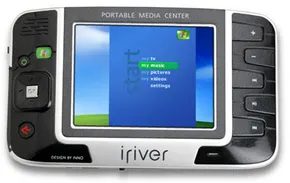
We now carry our lives in our pockets. That’s the only way to explain it. My cell phone, my laptop, my 3 year old MP3 player, it all adds up. But the real weight of mobile entertainment is in portable media centers. It’s one slim device. About the size of a paperback book. Store movies, TV shows, music and photos. You can also watch it on the train. Can be connected to a home stereo.
But how much can it really hold? What form is acceptable without error?
Storage capacity and file types
Most Windows Mobile-based portable media centers now have 20GB or 40GB of storage. This seems small compared to modern terabyte drives, but back then there were a lot of them. A 40 GB drive can hold up to 160 hours of video. Can store 10,000 songs. Or tens of thousands of digital photos. Archos also makes a player with similar functions, but does not include the Windows Mobile operating system. The capacity of the unit is up to 100 GB. That’s 400 hours of video. If you’re looking for raw capacity, the Archos has the edge.
What file formats are supported?
Windows Mobile-based Portable Media Center supports several file types, including:
- Microsoft Windows Media Video and Microsoft Photo Story files (.wmv and .asf) with a resolution of 320 x 240 pixels and a bit rate of less than 800 kilobytes per second (Kbps)
- Microsoft Windows Media audio file (.wma)
- MP3 audio file (.mp3)
- JPEG image files (.jpg, .jpeg, .jpe, .jfif)
- Microsoft recorded TV program file (.dvr-ms)
- MPEG video files (.mpeg, .mpg, mpe, .m1v, .mp2v, .mpeg2)
- Microsoft Windows video files (.avi)
- Microsoft Windows sound files (.wav)
Windows Media Player 10 has a built-in function to convert very large Windows Media video files and JPEG images to formats and sizes that PMC can handle. If your source files are high resolution, this conversion step is non-negotiable. The device cannot play them natively.
There is one major exception. Windows Mobile-based portable media centers are not compatible with iTunes music files. If you’re deep in the Apple ecosystem, you’re out of luck. You have to rip the track again or find a way around it.
Add music and videos to PMC
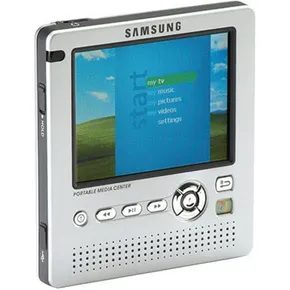

When you connect the Portable Media Center (PMC) to your home computer with a USB 2.0 cable, a certain ecosystem of file transfer capabilities becomes available. Windows PMC is designed to capture various types of personal media directly from your laptop or desktop. The formats supported are simple but limited by the legal framework.
You can transfer music copied from physical CDs. Photos taken with a digital camera are also accepted. You can also transfer home videos shot with a digital video camera without any problems. TV programs recorded on a Windows XP Media Center Edition computer or recorded with other PVR software are fully compatible. Videos downloaded from the Internet also go through the synchronization process.
“The portable media center can also play high-quality digital music and videos downloaded from various online services.”
However, there are serious limitations. Due to copyright restrictions, you cannot transfer purchased or owned DVDs to your device. You can’t just rip video files from commercial DVDs to PMC and play them. This limitation is because the device cannot decrypt disk encryption standards and is not intended to promote piracy.
How Windows Media Player 10 handles file synchronization
The engine that performs this transfer is Windows Media Player 10. It’s not just about copying files. Actively manage compatibility. If the portable media center cannot handle a certain file size or codec format, the software will automatically convert the file to a type and size supported by your device. This happens in the background, so you don’t have to code it manually.
You can set the player to sync only certain media types every time your device is connected. This prevents your portable storage device from filling up with unnecessary content.
The sync process itself is linear and mostly automated. The workflow proceeds as follows:
- Install Windows Media Player 10 on the host computer. This is a prerequisite for PMC connection.
- Connect your device with the supplied USB 2.0 cable.
- **Detection is happening. ** Windows Media Player recognizes the connected portable device and prompts you to start synchronizing.
- **Check operation. ** Click OK to continue setting the order.
- **The synchronization wizard starts. ** This interface allows you to set synchronization parameters. If the default values suit your needs, click Done.
- **Security Updates. ** If a “Security Update Required” dialog box appears, click OK to accept the update. This ensures the security of the device’s firmware and the player’s handshake protocol.
- **Sync starts. ** Windows Media Player transfers selected audio, video, recorded TV and image files. This transfer includes the CD album cover. The software converts files on the fly to ensure playback compatibility.
- Conditions vary. Sync times vary from seconds to hours. This time depends entirely on the capacity and file size of the media to be transferred.
- **Complete the inspection. ** When you’re done, the Items to Sync panel will show the number of items that have been successfully transferred.
- **Disconnect. ** Disconnect the cable. The device returns to the home screen and is now available offline.
Fine-tune your sync and conversion settings
The default behavior of Windows Media Player 10 is to synchronize all available media files. This is often too broad. Most users prefer to sync only music files or only photos to save storage space on their portable devices.
If you want to change these settings, you need to change the sync settings in the player interface.
– Click on the Sync Tab.
– Click the Sync Settings button.
– A new dialog box will appear where you can choose exactly which types of files you want to sync when you connect your device.
File conversion is another area that requires manual control. Not all audio and video files are compatible with all portable media centers. You can adjust the conversion of these files by going to Tools > Preferences in Windows Media Player 10. Go to the conversion settings by selecting the Device tab.
“To speed up the synchronization of large files, you can allow Windows Media Player to convert audio and video files while the computer is down.”
This setting optimizes system resources. By deferring heavy coding tasks to sleep mode, the synchronization process itself can be completed faster, or at least without affecting active computing tasks. This is especially important for large video files, the conversion of which into a format suitable for the device requires considerable processing power.
The ability to automatically convert files closes the gap between home computer libraries and portable devices. This eliminates technical friction caused by incompatible formats. However, DVD transfer restrictions remain strong, and digital rights management also applies to private, non-commercial settings. In return, compliance with the law is encouraged. For music, photos and personal videos, the process is seamless. This is not possible in commercial films.

Portable media center showdown
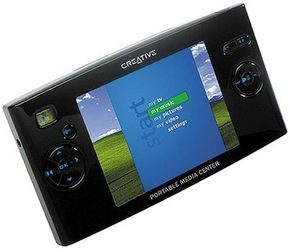
The market for Windows Media-based portable media centers is a battle between three wizards for supremacy. If you want to keep a library of movies and music in your pocket, you can basically choose between Creative Labs and iriver. The specs primarily tell the story of compromises between screen real estate, battery life, and carrying weight.
Creative Zen: A lightweight candidate
Creative Labs presents Creative Zen Portable Media Center. It’s a 20GB device that fits comfortably in your hand.
The compact dimensions are 5.67 x 3.18 x 1.06 inches. It weighs only 11.3 ounces. It’s so light you’ll forget you have it in your bag until you watch the video. Battery life is its strongest weapon. Play sound continuously for up to 22 hours. Watching the video reduces the time to 7 hours. That’s a big difference, but still respectable for a device this age.
The screen is a 3.8-inch screen with a resolution of 320×240. Slightly larger than its competitors. Manufacturer’s suggested retail price is $499. You pay for branding and portability.
iriver PMC: a sustainable alternative
iriver offers two storage options: PMC-120 (20 GB) and PMC-140 (40 GB). Prices reflect the increase in storage. The MSRP for the 20GB model is $499. The 40GB model jumps to $649.
The physical structure is relatively large. Dimensions are 5.6 x 3.3 x 1.2 inches. The weight here is really amazing. This object, which weighs 45 oz (1.3 kg), is a brick. Compare that to the Zen’s 11.3 oz. You carry almost four times more weight, so your storage space can double.
The screen is slightly smaller, 3.5 inches and has a resolution of 320×240. The battery life is shorter than Creative’s products. Up to 14 hours of sound reproduction is possible. The video was shortened to five hours. If you’re going to watch a movie on a long flight, you need a power bank or an outlet.
Why specifications are important
Why is this comparison important now? These devices provide a bridge between a simple MP3 player and a full-fledged smartphone. These were the first attempts to make portable video viewing truly mobile.
For everyday users, the weight difference is the most important factor. Carrying around 45 ounces of plastic or metal in a jacket pocket is inconvenient. The Creative Zen is lightweight, making it practical as a daily driver. The Iriver model feels like a purpose-built device for home use or short trips where weight is not an issue.
Battery life is determined by how you use it. The 7-hour video covers most of the film. 5 hours is not possible. If you have a long commute, Creative Zen is safer. If you need 40GB of space and don’t care about weight, the PMC-140 is better value per GB, but only if you can justify the physical strain.
The resolution is also the same. both
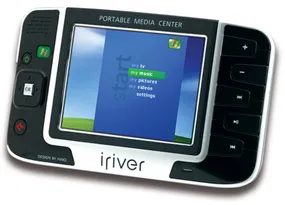

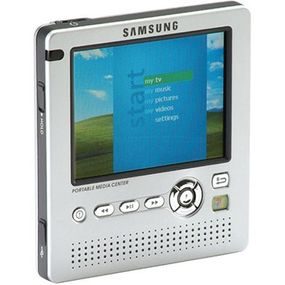
Samsung Yepp YH-999 Review: 20GB Powerful Storage in a Slim Case
Samsung Yepp YH-999 is expensive, but promises powerful technical features. At its core is a 20GB hard drive media player. This seems small by today’s standards, but it was quite large for high-bitrate MP3 files and some low-res videos at the time. It’s more than just a music jukebox. Our goal is to be a pocket theater.
The hardware feels detailed. It’s 8 ounces, so that’s quite a lot. You can’t leave it in your jeans pocket. Compact size, only 0.83 inches thick. Samsung has packed a 3.5-inch screen into a thin body. The resolution reaches 320 x 240 pixels. This is not HD. It’s not even VGA. But this is enough to play the video. The screen takes up most of the front. There are many navigation buttons. No touchscreen tricks here.
Samsung wins for battery life. It promises up to 12 hours of continuous sound playback. That’s what I hear all day. The video mode has deteriorated considerably. About 3 hours of continuous playback is possible. This was the standard for portable hard disk players at the time. After all, the drive is spinning. Consumes more energy.
With an MSRP of $499, this is not a budget piece of equipment. It competed with the iPod Video and early Zen players. The price is set to reflect the large display and storage capacity. You can pay to carry hundreds of songs and dozens of movies on a device small enough to fit in a jacket pocket.
YH-999 doesn’t try to do everything. We focus on playback reliability and screen size. This is a logical choice for users who prioritize video audio. The user interface is very simple. The file manager requires a desktop connection. Drag and drop. No wireless sync. It’s a compromise between price and capacity.
It is still part of the history of technology. I remember when 20GB was a luxury. For a $500 price tag, you get a decent display.


Why Archos and PSP accept Windows Media Player
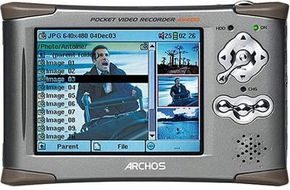
Windows is not the only game for portable media. See Archos. The company’s AV420 (20GB), AV480 (80GB) and new AV4100 (100GB) pocket recorders are good candidates.
The appeal here is simple. Storage. Archos machines offer huge capacity. However, the biggest feature is direct recording. You can connect a video recorder, cable adapter or satellite receiver directly to the player. No computer needed. For Windows Mobile devices, you must use a Windows XP Media Center computer as a proxy. This is friction. Archos removed it.
But there are also compromises. The magic of Windows Mobile’s automatic file synchronization has been lost. The manual transfer is part of the package.
Then there’s Sony’s portable PlayStation (PSP). It is also a gaming device that can play media. Pocket size. light. It has a 16:9 widescreen. USB2.0. Wireless network (802.11b). You can play games, videos and MP3 files. This is a serious contender in the portable media player arena.
The competition with the Apple iPod is getting tougher
This battle is about more than just hard drives. It’s about ecosystems. Windows Media-based portable media centers are facing serious pressure from the Apple iPod.
Apple’s latest iPod supports up to 150 hours of video. Choose the 30 GB or 60 GB models. Apple has signed a network agreement for downloadable TV programs. They also talk to TiVo. target? Cooperation between home DVR and iPod. This changes the way people think about what they photograph.
The future of portable media
Is the portable media center a big hit? We don’t know yet. It is larger and heavier than MP3 players such as the Apple iPod. But they have bigger screens. Familiar Windows user interface. Media content is diversifying.
In the future, it is expected that video and audio will be designed specifically for these devices. Some new features include:
- TiVoToGo: This allows TiVo users to transfer programs to Windows XP computers. Then sync your shows to your portable media center using Windows Media Player 10.
- MSN Video Downloads: Videos from CNBC, MSNBC, Fox Sports and Food Network. These are stored in your Windows Media Player 10 library and can be synced easily.
- MTV, VH1, CMT, Comedy Central shows: news and music shows designed for portable centers.
If consumers like it, they get more storage. A more elegant design. Made lighter. Hardware catches up with software.
For more information about Portable Media Center, see the links on the next page.
Related blog posts
- How MP3 players work
- How PDAs work
- How DVDs work
- How CDs work
- How the iPod works
- How the Ultra Mobile PC works
- How the PlayStation Portable works
- How a digital camera works
- How hard drives work
- How the camera works
More attractive links
-Windows Phone
– Portable media center movies
– The Register: Archos Prepares Linux, Wi-Fi-Enabled Portable Media Player – Jan 6, 2005
leave
- WIRED: Apple Unveils iPod Touch Video – October 12, 2005
- PC Magazine: A portable media center changes everything
- PC World: Microsoft introduces portable video


